XBMC
Ultimate Guide
HenryFord
3/31/2011
Feel free to share this document with everybody!
�
Contents
Introduction............................................................................................................................................. 2
XBMC ....................................................................................................................................................... 3
Download and Install XBMC ................................................................................................................ 3
Setup the Sources................................................................................................................................ 3
Additional Settings .............................................................................................................................. 5
Library Settings ................................................................................................................................ 5
Customization (Skins!) ..................................................................................................................... 5
Setup additional Addons ..................................................................................................................... 7
Extras ................................................................................................................................................... 7
Advanced-Launcher ......................................................................................................................... 7
SVN Repositories ............................................................................................................................. 7
Logo-/Tunes-Skins ........................................................................................................................... 7
Configure Gamepads ....................................................................................................................... 7
Sickbeard ................................................................................................................................................. 7
Installation and Setup.......................................................................................................................... 7
General ............................................................................................................................................ 8
Episode Downloads ....................................................................................................................... 10
Search Providers ............................................................................................................................ 12
�
Introduction
Don’t worry, this is going to be short: This guide was created after a lot of people complained that
“getting into “XBMC was kind of difficult for them. Thus I decided to create this guide to help them –
so I do not have to explain it over and over again. This guide includes instructions for a fully
automatic PVR without actually owning a TV-Card. Also – it heavily relies on some stuff that may be
illegal in your country. Check your local copyright-laws whether they apply, if they do – go ahead and
decide for yourself if you want to continue. I take no responsibility.
This is also the point at which I want to thank the whole community which surrounds the XBMC and
of course the XBMC-Team as well. The creator of “sickbeard” (midgetspy), of “Couch Potato”
(ruudburger) plus the teams around sabnzbd+ and XBMC. They put a lot of work into this and
deserve to be appreciated. Take that into account and consider donating something, because all of
the mentioned projects are completely community-driven open-source projects and they do not take
a cent for the supplied software.
Donations can be made to:
XBMC – Donation-Page
Sickbeard – Homepage with Donation-Button
Couch Potato – Homepage with Donation-Button
Sabnzbd – Donation-Page
I am sure they will appreciate your support.
�
XBMC
Homepage: http://www.xbmc.org
Download and Install XBMC
You can get the XBMC-Setup here:
http://xbmc.org/download/
Click the Windows-Logo to get the newest stable Windows-Build for your machine. You could
download the Nightly-Builds as well, but those are not approved to be working and may not work as
thought. So – if you’re not familiar with the XBMC and you are new to all of this, just take the stable
version. Download the Setup-File and install it. It will also install the needed libraries (DirectX, C++),
so it will take a little bit to complete. Wait a little while and launch XBMC afterwards. You will be
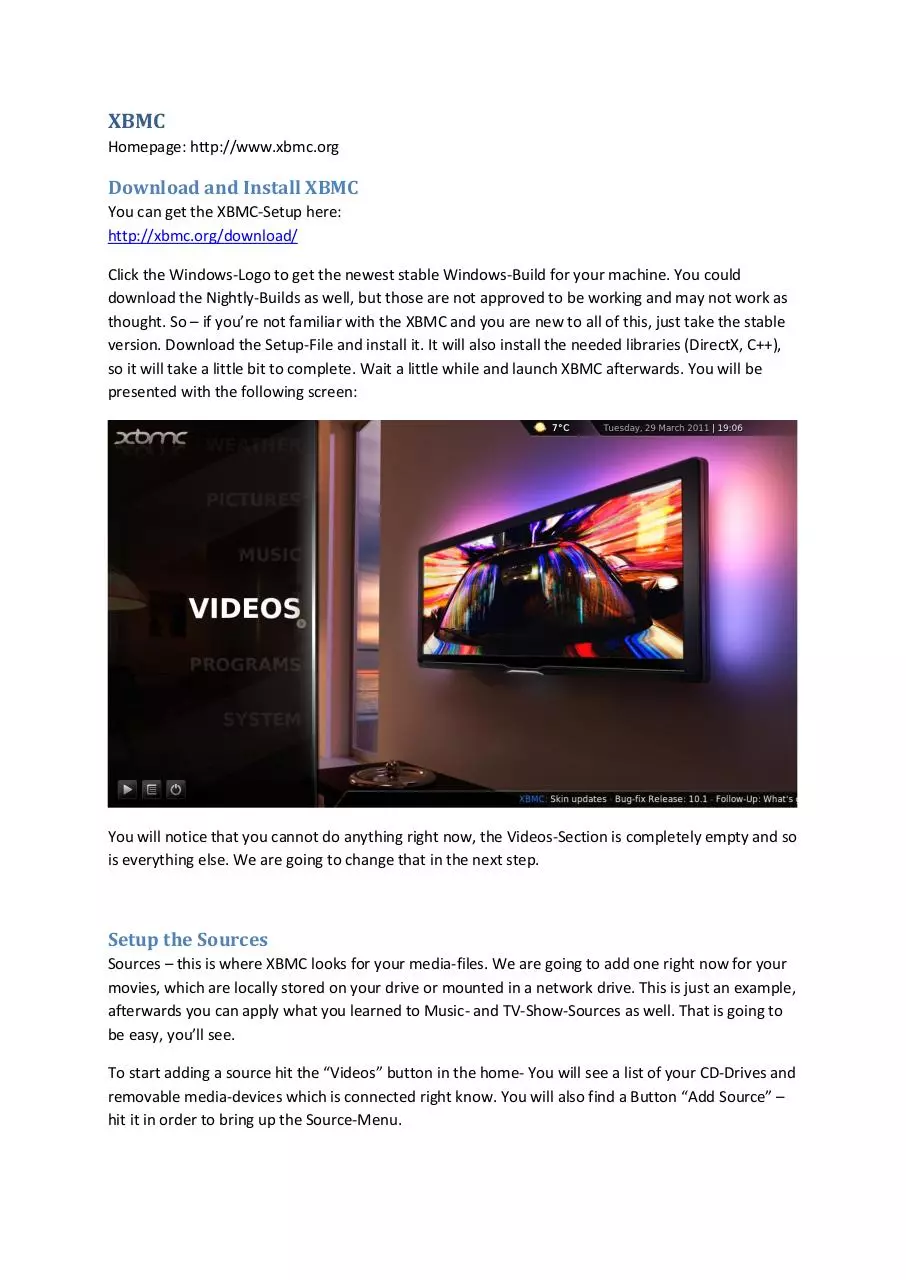
presented with the following screen:
You will notice that you cannot do anything right now, the Videos-Section is completely empty and so
is everything else. We are going to change that in the next step.
Setup the Sources
Sources – this is where XBMC looks for your media-files. We are going to add one right now for your
movies, which are locally stored on your drive or mounted in a network drive. This is just an example,
afterwards you can apply what you learned to Music- and TV-Show-Sources as well. That is going to
be easy, you’ll see.
To start adding a source hit the “Videos” button in the home- You will see a list of your CD-Drives and
removable media-devices which is connected right know. You will also find a Button “Add Source” –
hit it in order to bring up the Source-Menu.
�
You will find a screenshot below, how that should look like:
Hit the “Browse”-Button and locate your movie-location. This is ideally one folder which contains
your movies – this can be in subfolders as well as in single files or you just can mix them. The only
really important thing is that every movie in the movie-folder is named properly. You should name
your movies like “Film Name” and you may add additional information like “Year Quality” which will
help the XBMC to scan those files properly, although “Film Name” might just be enough. After you
choose the movie-folder in which your movies are stored you hit the “OK”-Button and hit “OK” again
in the “Add Source”-Dialog. You will then be presented with the content-dialog. You can now choose
what kind of media you stored in the source. We are going to choose “Movies” right now, but if you
wanted to add “TV-Shows” you would choose that of course. It will look like this:
�
If you want to add your movies right now (you want to ;-) ) hit the selection “Run automated scan”. If
you have subfolders in your movie-folder you can set “Use folder names for lookups” and “Scan
recursively” too. Hit “Ok” – XBMC will now search for your stored movies with the Movie-Scraper.
This will take a while. After the scanning completes, go ahead and add your other sources as well.
You want to include the TV-Shows-Folder you have stored locally.
Additional Settings
Library Settings
Navigate back to the Home-Window (hit Backspace to get back) and open up the Settings-Menu.
Open the “Video”-Tab and click on the Library-Tab. I recommend using “Automated Scan on
Startup”, this way you make sure that every new file you add will be there after you restart your
XBMC. I will explain later how you can start the scan by yourself. Remember the “Clean Library”Button – if you delete files out of the folders you specified under your Sources it still will show up in
the library of XBMC, even after you scanned for new content. To remove dead entries hit the button
“Clean Library”, it will remove them. Be aware: If you added a removable device as a source and you
hit the “Clean Library”-Button while the device is disconnected you can lose your library.
Customization (Skins!)
You can modify the behavior and appearance of your skin by applying extended settings. Each skin
has specific settings, you have to choose what you like. Generally you can disable/enable specific
Home-Menu-Buttons and more. Play a little bit with the settings if you are not sure and see what you
like. You should in any case activate the home-screen menus “TV Shows” and “Movies” (accordingly
to your sources) – because this are the library-sections which you want to use later.
Every skin has also own views for the different media-sections (TV Shows, Movies, Music) between
which you can choose in order to customize everything for your needs. This is also a little bit of a
“Trial & Error”-Game – switch between the different views in order to find out what you like most. In
order to apply a new view for a specific section, navigate back to the home-menu and click on the
“Movie”-Tab for example. Now – in the movie section – click the Right-Arrow-Key on your keyboard.
�
This will open up the side-menu, where you can choose the view. In this example you see the view
“Thumbnail” selected:
You can apply complete new skins to your XBMC which will change the look and feel of XBMC
entirely. I recommend the Night-Skin, although you might prefer something else. To install a new
skin, open up the “Appearance”-Settings. You will find an option “Skin” – click here to open the SkinSelector. Click on the “More”-Button at the bottom of the selector. Choose the skin you want to try
and it will download. After the download completes you will be asked to switch to the skin – choose
what you like.
�
Setup additional Addons
You can expand your XBMC-Experience by installing Add-Ons/Plugins. Since XBMC Dharma we have a
repository installed from which we can choose additional Add-ons/Plugins. You can find this subsection on the home-screen. Hit the “Add-On”-Section in XBMC and choose “Get Addons” – browse
and install what you like.
Extras
Advanced-Launcher
(Coming Soon)
SVN Repositories
(Coming Soon)
Logo-/Tunes-Skins
(Coming Soon)
Configure Gamepads
(Coming Soon)
SABnzbd+
Homepage: http://sabnzbd.org/
Since the documentation around SAB is very well done and helpful, I won’t do anything on SABnzbd+
besides pointing to the right direction. Download the latest Windows build at:
http://sabnzbd.org/
After the download check the Setup Walkthrough – it will help you get things up and running:
http://wiki.sabnzbd.org/quick-setup
This may be interesting in the context as you may want to use the PP-Script of Sickbeard (more on
that later):
http://wiki.sabnzbd.org/configure-categories
http://wiki.sabnzbd.org/configure-directories
Sickbeard
Homepage: www.sickbeard.com
Installation and Setup
Sickbeard is fairly easy to handle. Download the latest build from the Sickbeard-Homepage:
www.sickbeard.com
Just unzip it and run “sickbeard.exe” – You can now access your Sickbeard via the Web-Interface,
which should be reachable under http://localhost:8081 in your Webbrowser. Please note that the
first time you want to show Sickbeards-Page it runs a little bit. Just stay calm – eventually the site will
pop up.
�
After you reached the Web-Interface you want to configure everything before you put in your
already existent TV-Shows. For the sake of this manual, I’ll just go ahead and copy the content from
http://www.sickbeard.com/config.html into this document. This was not done by me, but by the
Sickbeard-Community and the guide is very good. Note that everything may look a bit different on
your end. In the newer updates of Sickbeard you will find that Twitter-Notifications are actually
working, etc.
General
Misc
1. Logging directory
The directory where you want your logs to be stored
�
2. Create Metadata
If checked, Sick Beard will generate NFO files for use with XBMC (and other compatible HTPC
applications)
3. Create Images
If checked, Sick Beard will download posters, fanart, and tbn for XBMC
4. Launch browser on startup
If checked, Sick Beard will open the GUI homepage in your browser when you start it.
5. Notify when new versions are available
When running the Windows binaries, Sick Beard will let you know when a new version is available
Web Interface
6. HTTP Port
The port you want Sick Beard to run on
7. Enable HTTP log
If checked, Sick Beard will tell cherrypy to place a log in your log folder
8. Sick Beard username
Username required to log in to the Sick Beard web GUI (Leave blank for no anthentication)
9. Sick Beard password
Password required to log in to the Sick Beard web GUI (Leave blank for no anthentication)
Defaults
10. Initial Quality
When you add a show it will be assigned this quality by default.
11. Use Season Folders
When a show is added its "use season folders" setting will be this.
Episode Naming
12. Include show name
If checked, the name of the show will be part of the filename
13. Include episode name
If checked, the name of the episode title will be part of the filename
14. Use periods
If checked, periods will be used instead of spaces
15. Separator Style
Choose your separator style
16. Number Style
Choose your number style
17. Multi-episode Style
Choose the style of multi-episode files
�
Episode Downloads
Episode Search
1. NZBs
If this is unchecked then the search will not look for NZBs at all, no matter what providers you have
selected.
2. Torrents
Sick Beard will only search for torrent files if this is checked.
3. Search Frequency
The number of minutes between searches (min 10)
4. Backlog Search Frequency
The number of days between backlog searches
�
NZB/Torrent Options
5. NZB Action
Black hole: saves NZBs to a folder that your newsgroup client is watching
SABnzbd: passes the NZB URLs directly to SABnzbd so it can download them itself. For this your
SABnzbd section must be configured properly and you must be running SABnzbd 0.5+
6. NZB Black Hole
If black hole is selected then NZB files will be saved to this folder. Your newsgroup client should be
configured to watch this folder and automatically pick up NZBs inside.
7. Usenet Retention
The number of days of retention that your usenet provider offers. NZBs older than this won't be
downloaded.
8. Torrent Black Hole
If torrents are enabled then they will be downloaded to this folder. Your torrent client should be
configured to watch this folder and automatically pick up any torrents it finds.
SABnzbd
These settings are required if you have your NZB Action set to "SABnzbd". If you are using Black hole
you can leave this section blank.
9. Username
Your SAB auth username
10. Password
Your SAB auth password
11. API Key
The API key specified in your SAB config
12. Category
The name of the category you want your downloads to go to ("TV" is default)
13. IP/Port
The address of your SAB host - no http:// or /sabnzbd/ required. Only IP/port, eg.
192.168.1.100:8080
Post-Processing
14. TV Download Dir
The folder where your download client puts your TV downloads (only needed if you're not using SAB
post processing OR if SAB and Sick Beard are on different PCs)
15. Keep folder
If checked, Sick Beard won't delete the episode folder and any extra files (original nfo, sfv, etc)
16. Rename episodes
If checked, Sick Beard will rename the episode according to the naming settings in General
17. Scan & Process TV Download Dir
Will scan your TV Download Dir and attempt to post-process every file it finds. NOTE: If you use
sabToSickbeard w/ SABnzbd+ do not check this!
�
Search Providers
Provider Priorities
1. Provider Priorities
Drag the providers into the order you want them to be searched
NZBs.org
Log in and go to http://nzbs.org/index.php?action=rss
Near the top there is a string like:
Add this string to your feed URL to allow NZB downloads without logging in:
&i=12345&h=abcdef1234567890fedcba1234567890
The numbers after &i= are your UID, the string after &h= is your hash (UID=12345 and
hash=abcdef1234567890fedcba1234567890 in the example above)
2. Enable NZBs.org
Check to enable searching for episodes on NZBs.org
3. NZBs.org UID
Your NZBs.org UID
4. NZBs.org hash
Your NZBs.org hash
�
NZBs'R'US
Log in and go to http://www.nzbsrus.com/rss.php
In the "User defined" select box at the bottom, click on any option
At the bottom of the page, an URL will appear like this:
http://www.nzbsrus.com/rssfeed.php?cat=87&i=21345&h=abcdef1234567890fedcba1234567890
The numbers after &i= are your UID, the string after &h= is your hash (UID=12345 and
hash=abcdef1234567890fedcba1234567890 in the example above)
5. Enable NZBs'R'US
Check to enable searching for episodes on NZBs'R'US (Only currently Airing)
6. NZBs'R'US UID
Your NZBs'R'US UID
7. NZBs'R'US hash
Your NZBs'R'US hash
Bin-Req
8. Enable Bin-Req
Check to enable searching for episodes on NZBs'R'US (Only currently Airing)
NZBMatrix
Log in and go to http://nzbmatrix.com/account.php
Retrieve your API key from that page
9. Enable NZBMatrix
Your SAB auth username
10. NZBMatrix username
Your SAB auth password
11. NZBMatrix API Key
The API key specified in your SAB config
�
Notifications
XBMC
1. Notify XBMC on NZB retrieval
Send XBMC a notification when we find an NZB?
2. Notify XBMC on episode download
Send XBMC a notification when we finish a download?
3. Update XBMC library
Update XBMC library when we finish a download?
4. XBMC host
XBMC HTTP API address (IP:port, eg. 192.168.1.100:8080).(multiple host strings can be separated by
commas)
5. XBMC Username
Username of your XBMC server (blank for none)
6. XBMC Password
Password of your XBMC server (blank for none)
7. Test XBMC
Click this to send a test notification to your XBMC host(s)
�
Adding TV-Shows
You have two different options available: New Show and Existing Show. If you want to download a
TV-Show you do not own at this time, click on the button „Add New Show“ and head to the section
below. If you want to add one or more TV-Shows you already have saved on your disk click on the
button „Add Existing Shows“ and head to the section „Existing Shows“ further below.
Add New Show
There are three steps in order to add a new Show to your database:
1. Find TV-Show on TVDB
2. Pick the folder in which the Show will be stored
3. Customization
The third step however is optional – you can just apply the settings which are stored in your
configuration.
First type in the name of the Show you want to add. Sickbeard will the look in the TVDB for a
corresponding title and will present you with the results.
Hit the results which suit your Show and click the “Next”-Button. As you do not have a parent-folder
specified right now, click the “New”-Button in the next step and choose the folder in which the Show
should be stored.
In the next step choose your likings and click on “Add Show” at the bottom of the page.
�
Add Existing Show
First click on the button “Manage Directories” and add the Root-Folder of your existent TV-Shows.
You can add more folders if you like (if you – for example – have a folder Shows and Shows2, you
could add them both). You should notice that sickbeard starts to load and indexes the new folders
which are subfolders of your Shows-Folder(s).
Now click on the button “Customize Options” and set everything accordingly and hit the button
“Submit”.
You will now be presented with the “Step 1”-screen of the Add-Show-Dialog. It will show you the
search results for the Show lookups based on your Show-Directory.
Click on the right Show and hit the button “Add Show” below. This will continue until every folder is
scanned and checked. If you do not want to add a specific show, just hit the button “Skip Show” and
if you want to customize your choices hit “Next” and “Next” again to get to Step 3. Here you can
configure special settings for the single show.
After you added the Shows to Sickbeard you have to wait a little bit – Sickbeard is now gathering all
the required information and then will start looking up the series (if you specified it) in the NZBDatabases. Otherwise Sickbeard is now completely ready for usage – just hit the button “Coming
Episodes” in Sickbeard to see what Sickbeard will download next and what episodes already were
missed.
�
Post-Processing
At this point Sickbeard is configured to look for new releases. But how will Sickbeard now know if a
download finished? Post-Processing is the key-word. Post-Processing is the ability of Sickbeard to
automatically rename your downloads and sort them into the proper folders. Without this you will
need to manually copy them over and then re-scan the show directory to find the new episodes.
There are two possibilities to do this:
1. Head back to the section “Episode Downloads” under “Installation and Setup” and you will
find the options “TV Download Dir” and “Scan and Process TV Download Dir”. Set these
settings accordingly.
2. You can configure SABnzbd to launch a Post-Processing-Script for sickbeard. Again I will copy
the content of the sickbeard-page regarding this process
(http://code.google.com/p/sickbeard/wiki/PostProcessing):
To set up post processing, first copy the contents of the autoProcessTV directory from your
Sick Beard installation to your SABnzbd+ scripts folder (or set your scripts folder to the
location of the autoProcessTV directory). Rename autoProcessTV.cfg.sample to simply
autoProcessTV.cfg and open it in a text editor. Change the host, port, username, and
password values to the appropriate settings for your Sick Beard server. Then set the
appropriate script as your postprocessing script inside SABnzbd+/HellaNZB:
sabToSickbeard.py - linux/OSX SABnzbd+
sabToSickbeard.exe - Windows SABnzbd+
hellaToSickbeard.py - HellaNZB
Note: If your SABnzbd+ is running on a different PC than your Sick Beard you may need to
enter your TV download dir into your Sick Beard settings so that Sick Beard knows how to
find the SABnzbd+ downloads.
Note 2: You must disable SAB sorting to use Sick Beard post processing, all episodes should
be being post-processed from a temporary download folder.
Couch Potato
Homepage: http://couchpotatoapp.com/
(Coming Soon)
�
 Historical archive . public document