Testing Documents – Manage Engineering Projects
System
20/07/2011
Team Members:
- Yoni Tserruya
- Ohad Ozer
- Kfir Schindelhaim
Page1
�
Testing Documents – Manage Engineering Projects
System
20/07/2011
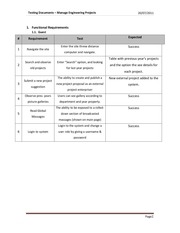
1. Functional Requirements
1.1. Guest
#
Requirement
1
Navigate the site
Test
Enter the site threw distance
Expected
Success
computer and navigate.
Table with previous year’s projects
2
Search and observe
Enter “Search” option, and looking
old projects
for last year projects
and the option the see details for
each project.
3
The ability to create and publish a
New external project added to the
new project proposal as an external
system.
Submit a new project
suggestion
project enterpriser
4
Observe prev. years
Users can see gallery according to
picture galleries
department and year property.
The ability to be exposed to a rolled-
5
Read Global
Success
Success
down section of broadcasted
Massages
massages (shown on main page)
Login to the system and change a
6
Login to system
Success
user role by giving a username &
password
Page2
�
Testing Documents – Manage Engineering Projects
System
20/07/2011
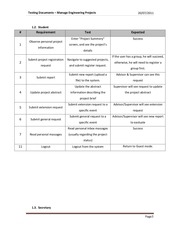
1.2. Student
#
1
Requirement
Test
Expected
Enter “Project Summery”
Success
Observe personal project
screen, and see the project’s
information
details
If the user has a group, he will succeed,
2
Submit project registration
Navigate to suggested projects,
request
and submit register request.
otherwise, he will need to register a
group first.
3
4
Submit new report (upload a
Advisor & Supervisor can see this
file) to the system.
request
Update the abstract
Supervisor will see request to update
information describing the
the project abstract
Submit report
Update project abstract
project brief
5
Submit extension request
6
Submit general request
7
Read personal massages
Submit extension request to a
Advisor/Supervisor will see extension
specific event
request
Submit general request to a
Advisor/Supervisor will see new report
specific event
to eavluate
Read personal inbox massages
Success
(usually regarding the project
status)
11
Logout
Logout from the system
Return to Guest mode.
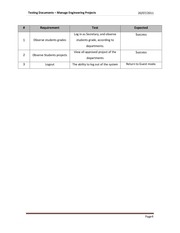
1.3. Secretary
Page3
�
Testing Documents – Manage Engineering Projects
System
#
1
Requirement
Observe students grades
20/07/2011
Test
Expected
Log in as Secretary, and observe
Success
students grade, according to
departments.
View all approved project of the
2
Observe Students projects
3
Logout
Success
departments
The ability to log out of the system
Return to Guest mode.
Page4
�
Testing Documents – Manage Engineering Projects
System
20/07/2011
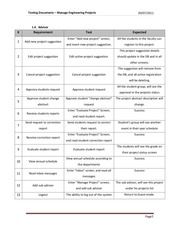
1.4. Advisor
#
Requirement
1
Add new project suggestion
Test
Expected
Enter “Add new project” screen,
All the students in the faculty can
and insert new project suggestion.
register to this project.
This project suggestion details
2
Edit project suggestion
Edit active project suggestion.
should update in the DB and in all
other screens.
The suggestion will remove from
3
Cancel project suggestion
Cancel project suggestion
the DB, and all active registration
will be deleting.
4
5
6
7
All the student group, will see the
Approve students request
Approve student request
approval in the projects status
Approve student change
Approve student “change abstract”
The project abstract description will
abstract
request
change.
Enter “Evaluate Project” Screen,
Success
Receive students reports
and read student report.
Send request to correction
Send students request to correct
Student’s group will see another
report
their report.
event in their year schedule
Enter “Evaluate Project” Screen,
Success
8
Receive correction report
9
Evaluate student report
10
View annual schedule
11
Read inbox messages
12
Add sub-adviser
13
Logout
and read student correction report
The students will see the grade on
Evaluate student report
their project status screen
View annual schedule according to
Success
the departments
Enter “Inbox” screen, and read all
Success
messages
Enter “Manage Project” screen,
The sub advisor, will see this project
and add sub advisor
under his projects list
The ability to log out of the system
Return to Guest mode.
Page5
�
Testing Documents – Manage Engineering Projects
System
20/07/2011
1.5. Supervisor
#
Requirement
Test
Expected
Student status should change
Enter “Registration Requests” and
Respond to project
after project was approved,
approve/decline student registration
1
suggestion
and all his other registration’s
requests
requests will be remove
All the students in this year
Add a new event to
Enter “Events” screen, add new
schedule
event
2
and department, will see the
new event
This event will be removed
Remove an event from the
Enter “Events” screen, remove exists
schedule
event
3
from the DB, and no other
user will see it anymore
The student will see the
Respond to an extension
Enter “Students Requests” screen,
request
and approve/decline the request
4
response on his “Requests”
screen
Enter “Broadcast Messages” screen.
All the students in the
And send message to the
departments will see message
departments’ students
in their inbox
Enter “Broadcast Messages” screen.
All the staff in the
And send message to the
departments will see message
departments’ staff
in their inbox
Send message to
5
departments’ students
Send message to
6
departments’ staff
The photo will be ad to the DB.
Enter “Upload a photo” screen, and
7
Upload a new photo album
Any role in the system can
upload a new photo.
watch it in the gallery.
Enter “Set Role” screen, and create
8
Success
Update user permission
an Advisor or Secretary user
9
Logout
The ability to log out of the system
Return to Guest mode.
Page6
�
Testing Documents – Manage Engineering Projects
System
20/07/2011
2. Non Functional Requirements
2.1. Speed
After we install the system on BGU servers, we tested the system interaction from
external servers and the system speed was as expected.
2.2. Capacity
The system capacity is unlimited; it is only depends on the server’s abilities.
We tested it with over 1,000 fake projects and 3,000 fake students and the results was
satisfies.
2.3. Availability
The system installed on BGU servers, and should be available 24/7.
2.4. Reliability
We use Apache server with MySql, which can handle mass of simultaneously users.
2.5. Safety & Security
We are using BGU web-service to authenticate the users.
We tested all the roles on the system to make sure each role can only get data and do
only transaction which in his authority.
2.6. Portability
We checked the system on several OS (Windows XP, Windows Vista, Windows 7, Mac
OSX Snow Leopard, and Mac OSX Lion) and on several browsers (Chrome, Firefox,
Safari, Explorer 7+) and system works as it designed.
Page7
�
Testing Documents – Manage Engineering Projects
System
20/07/2011
3. Unit Testing
During all the programming process, we use special (Test) objects.
Each class has test class, which test all its methods separately.
When we added new method, before connect it to other parts in the system, first
we preformed unit test on it.
The system is design in MVC design patters, which allow us to separate the modules,
and test each modules behavior without the other parts.
For each layer we run tests separate to ensure the system functionality is work as
designed.
4. User Interface Testing
According to section one – Functional Requirements,
We have preformed tests for each role in the system.
We ensure that the user interface support all the demands.
In addition, we checked in each screen, error’s scenarios to ensure the system can
handle this cases.
For example, wrong inputs on registration forms,
and several possible error scenarios.
5. Integration Tests
We setup the system on BGU server and test it’s behavior from remote computer.
We checked with real BGU users (Students and staff members), and ensure all
functionality is working as designeds.
Page8
�
 Historical archive . public document