Event Provisioning with Evertz IPG Card (10.74.79.6)
The IPG Card control interface is installed on a virtual machine on the labnet network. The VM can be
reached at 10.74.64.119. (note: Unfortunately this IP is DHCP because the VMs on labnet do not have a
static IP pool, yet I don’t expect it to change). The user is CSILAB\Administrator and the password is
Espn123 (what else).
1. Open the VistaProLink application by double clicking the ASIS icon the desktop:
2. The User/Pass at the login prompt is 2016 for both.
3. From the left hand side tree menu select open Hardware.
4. Once opened the tree will look as follow:
The hardware high-lighted in black are restricted to us and for ASIS use only. The
hardware listed as 10.74.79.6 is the IPG card configuration for the 2016 configuration.
Page 1 of 7
�
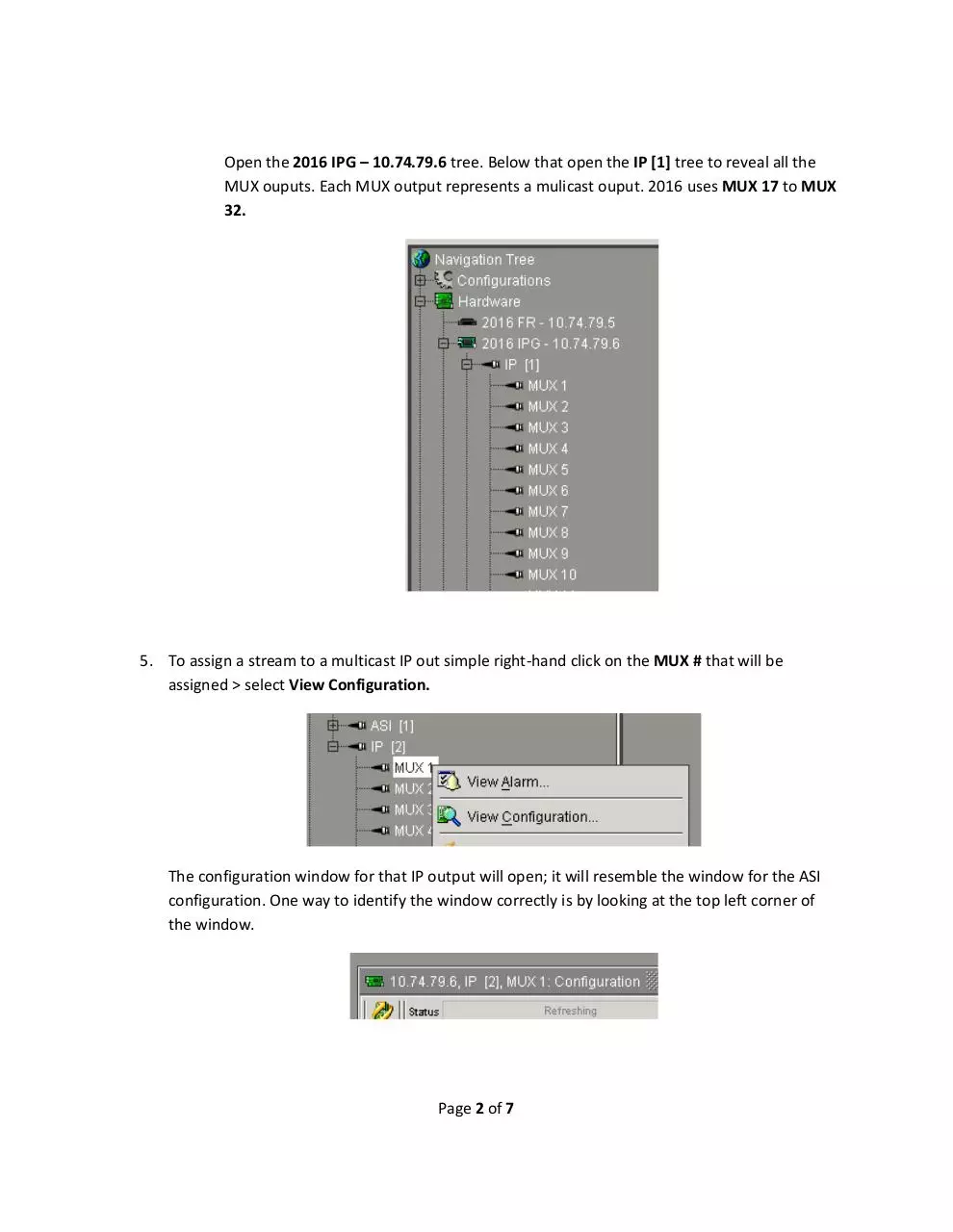
Open the 2016 IPG – 10.74.79.6 tree. Below that open the IP [1] tree to reveal all the
MUX ouputs. Each MUX output represents a mulicast ouput. 2016 uses MUX 17 to MUX
32.
5. To assign a stream to a multicast IP out simple right-hand click on the MUX # that will be
assigned > select View Configuration.
The configuration window for that IP output will open; it will resemble the window for the ASI
configuration. One way to identify the window correctly is by looking at the top left corner of
the window.
Page 2 of 7
�
6. In the MUX # window open the ASI stream from the left tree that is to be assigned, the tree will
reveal the programs associated with that stream.
NOTE: if IP Output # already has a program associated with it press the Clear button at the bottom and
click Copy to Online to ensure the clear configuration takes hold at the card.
Page 3 of 7
�
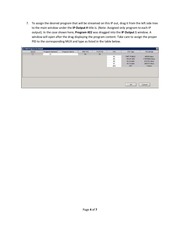
7. To assign the desired program that will be streamed on this IP out, drag it from the left side tree
to the main window under the IP Output # title is. (Note: Assigned only program to each IP
output). In the case shown here, Program #22 was dragged into the IP Output 1 window. A
window will open after the drag displaying the program content. Take care to assign the proper
PID to the corresponding MUX and type as listed in the table below.
Page 4 of 7
�
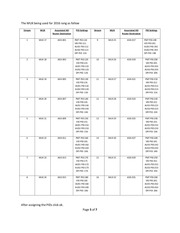
The MUX being used for 2016 rang as follow
Stream
MUX
Associated ASI
Router Destination
PID Settings
Stream
MUX
Associated ASI
Router Destination
PID Settings
1
MUX 17
ASIS-001
PMT PID:110
VID PID:111
AUD1 PID:112
AUD2 PID:113
DPI PID: 116
9
MUX 25
ASIS-017
PMT PID:190
VID PID:191
AUD1 PID:192
AUD2 PID:193
DPI PID: 196
2
MUX 18
ASIS-003
PMT PID:120
VID PID:121
AUD1 PID:122
AUD2 PID:123
DPI PID: 126
10
MUX 26
ASIS-019
PMT PID:200
VID PID:201
AUD1 PID:202
AUD2 PID:203
DPI PID: 206
3
MUX 19
ASIS-005
PMT PID:130
VID PID:131
AUD1 PID:132
AUD2 PID:133
DPI PID: 136
11
MUX 27
ASIS-021
PMT PID:210
VID PID:211
AUD1 PID:212
AUD2 PID:213
DPI PID: 216
4
MUX 20
ASIS-007
PMT PID:140
VID PID:141
AUD1 PID:142
AUD2 PID:143
DPI PID: 146
12
MUX 28
ASIS-023
PMT PID:220
VID PID:221
AUD1 PID:222
AUD2 PID:223
DPI PID: 226
5
MUX 21
ASIS-009
PMT PID:150
VID PID:151
AUD1 PID:152
AUD2 PID:153
DPI PID: 156
13
MUX 29
ASIS-025
PMT PID:230
VID PID:231
AUD1 PID:232
AUD2 PID:233
DPI PID: 236
6
MUX 22
ASIS-011
PMT PID:160
VID PID:161
AUD1 PID:162
AUD2 PID:163
DPI PID: 166
14
MUX 30
ASIS-027
PMT PID:240
VID PID:241
AUD1 PID:242
AUD2 PID:243
DPI PID: 246
7
MUX 23
ASIS-013
PMT PID:170
VID PID:171
AUD1 PID:172
AUD2 PID:173
DPI PID: 176
15
MUX 31
ASIS-029
PMT PID:250
VID PID:251
AUD1 PID:252
AUD2 PID:253
DPI PID: 256
8
MUX 24
ASIS-015
PMT PID:180
VID PID:181
AUD1 PID:182
AUD2 PID:183
DPI PID: 186
16
MUX 32
ASIS-031
PMT PID:260
VID PID:261
AUD1 PID:262
AUD2 PID:263
DPI PID: 266
After assigning the PIDs click ok.
Page 5 of 7
�
The program info will appear under the IP Output # tree. Click the [+] to expand and verify content.
8. In order for the stream to output properly the Output Bitrate (kbps) needs to be set to a rate
greater than the total bitrate of the programs stream. In this example the program stream is a
little over 18Mbs. So the Output Bitrate (kbps) should be set to something like 19.5 or 20Mbs.
Also noticed I have labeled the TS ID stream by its IP output number making it easier to identify
downstream.
On the right-hand side of the window, select Enable from the LTC Enable drop down menu and click
apply.
Page 6 of 7
�
9. This Apply only saves the configuration locally, in order for the IPG Card to use the newly set
configuration click Copy to Online at the bottom of the window. The green light next to the
Output Status verifies that the stream is running.
10. Close the window.
Troubleshooting Tip
If troubleshooting, a user can switch to the online tab and see if the bitrate has a number or is zero (zero
= no source) and if the running light is still green.
Page 7 of 7
�
 Historical archive . public document