This article will assist you with setting up Outlook 2016 with your Hosted Mailbox.
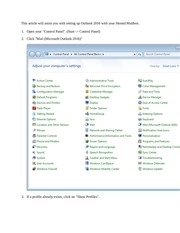
1. Open your "Control Panel". (Start -> Control Panel)
2. Click "Mail (Microsoft Outlook 2016)"
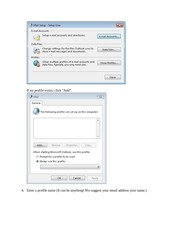
3. If a profile already exists, click on "Show Profiles".
�
If no profile exists, click "Add".
4. Enter a profile name (It can be anything! We suggest your email address your name.)
�
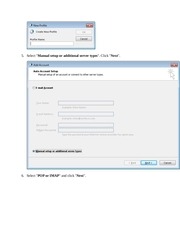
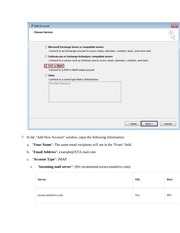
5. Select "Manual setup or additional server types". Click "Next".
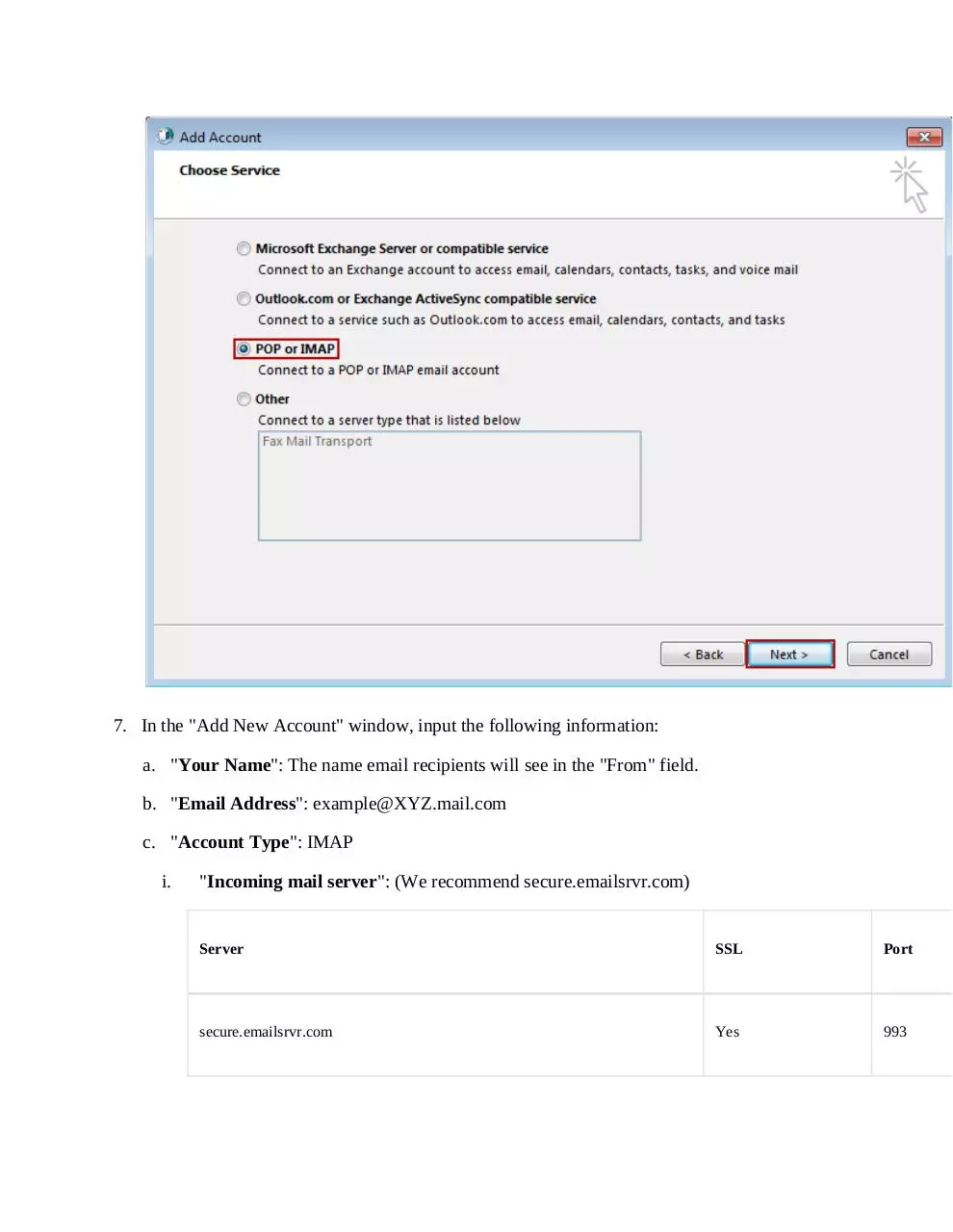
6. Select "POP or IMAP" and click "Next".
�
7. In the "Add New Account" window, input the following information:
a. "Your Name": The name email recipients will see in the "From" field.
b. "Email Address": example@XYZ.mail.com
c. "Account Type": IMAP
i.
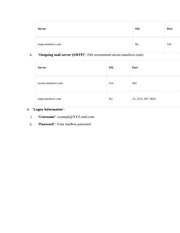
"Incoming mail server": (We recommend secure.emailsrvr.com)
Server
SSL
Port
secure.emailsrvr.com
Yes
993
�
ii.
Server
SSL
Port
imap.emailsrvr.com
No
143
"Outgoing mail server (SMTP)": (We recommend secure.emailsrvr.com)
Server
SSL
Port
secure.emailsrvr.com
Yes
465
smtp.emailsrvr.com
No
25, 2525, 587, 8025
d. "Logon Information":
i.
"Username": example@XYZ.mail.com
ii.
"Password": Your mailbox password
�
8. Click on "More Settings" then click the "Outgoing Server" Tab
a. Check the box for "My outgoing server (SMTP) requires authentication".
b. Check the button for "Use same settings as my incoming mail server".
�
9. If using "secure.emailsrvr.com": Click on the "Advanced" Tab
a. Change "Use the following type of encrypted connection" to "SSL".
b. Change the port numbers to match the chart on step 4.c. Click "OK".
�
10. Click "Next". Outlook will now attempt to send a test message using the settings we have
just put in. If everything was entered correctly, the message will send out successfully.
11. Congratulations! You have now setup Outlook to work with your Mailbox!
�
�
 Historical archive . public document