This article will assist you with setting up Outlook 2016, using IMAP, for your Hosted Mailbox.
1. Launch Outlook, if it's not already open.
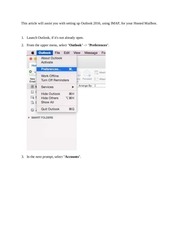
2. From the upper menu, select "Outlook" -> "Preferences".
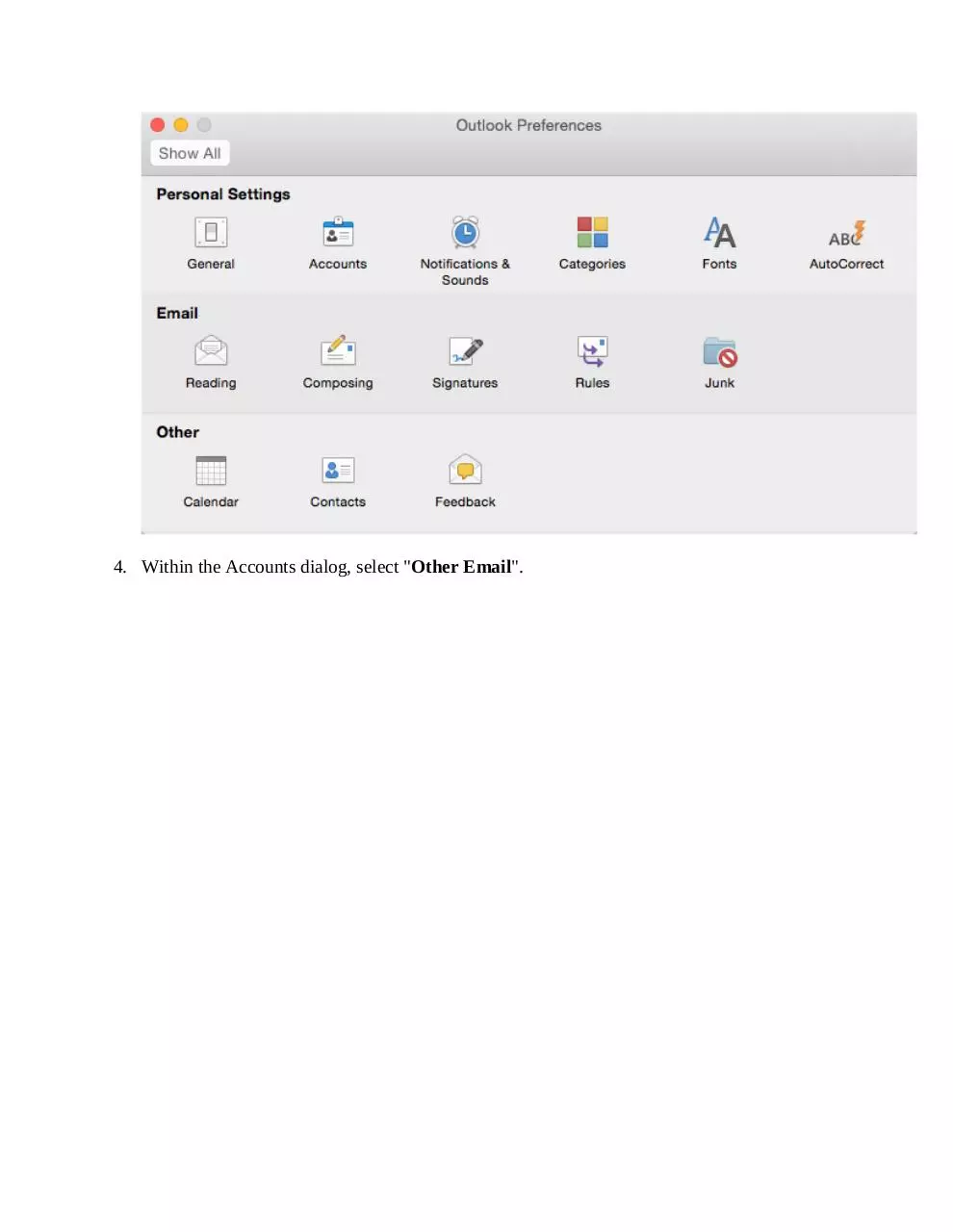
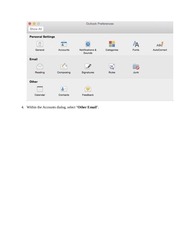
3. In the next prompt, select "Accounts".
�
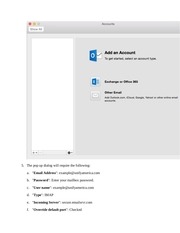
4. Within the Accounts dialog, select "Other Email".
�
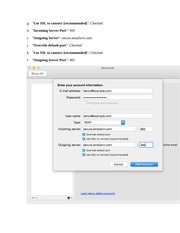
5. The pop up dialog will require the following:
a. "Email Address": example@unifyamerica.com
b. "Password": Enter your mailbox password.
c. "User name": example@unifyamerica.com
d. "Type": IMAP
e. "Incoming Server": secure.emailsrvr.com
f. "Override default port": Checked
�
g. "Use SSL to connect (recommended)": Checked
h. "Incoming Server Port": 993
i. "Outgoing Server": secure.emailsrvr.com
j. "Override default port": Checked
k. "Use SSL to connect (recommended)": Checked
l. "Outgoing Server Port": 465
�
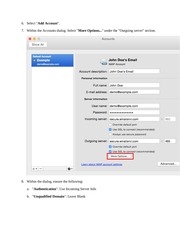
6. Select "Add Account".
7. Within the Accounts dialog. Select "More Options..." under the "Outgoing server" section.
8. Within the dialog, ensure the following:
a. "Authentication": Use Incoming Server Info
b. "Unqualified Domain": Leave Blank
�
9. Click "OK".
10. Close the Accounts window.
11. Click "Send/Receive". Your email should begin syncing with the server.
�
 Historical archive . public document