Android: Samsung (IMAP)
This is a setup guide that will assist you in setting up your Hosted Mailbox on Samsung mobile and
tablet devices using IMAP.
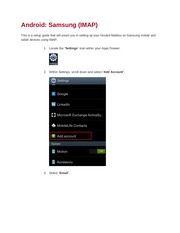
1. Locate the "Settings" icon within your Apps Drawer.
2. Within Settings, scroll down and select "Add Account".
3. Select "Email".
�
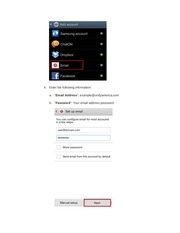
4. Enter the following information:
a. "Email Address": example@unifyamerica.com
b. "Password": Your email address password
�
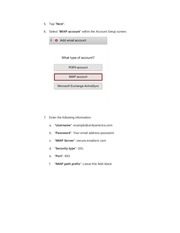
5. Tap "Next".
6. Select "IMAP account" within the Account Setup screen.
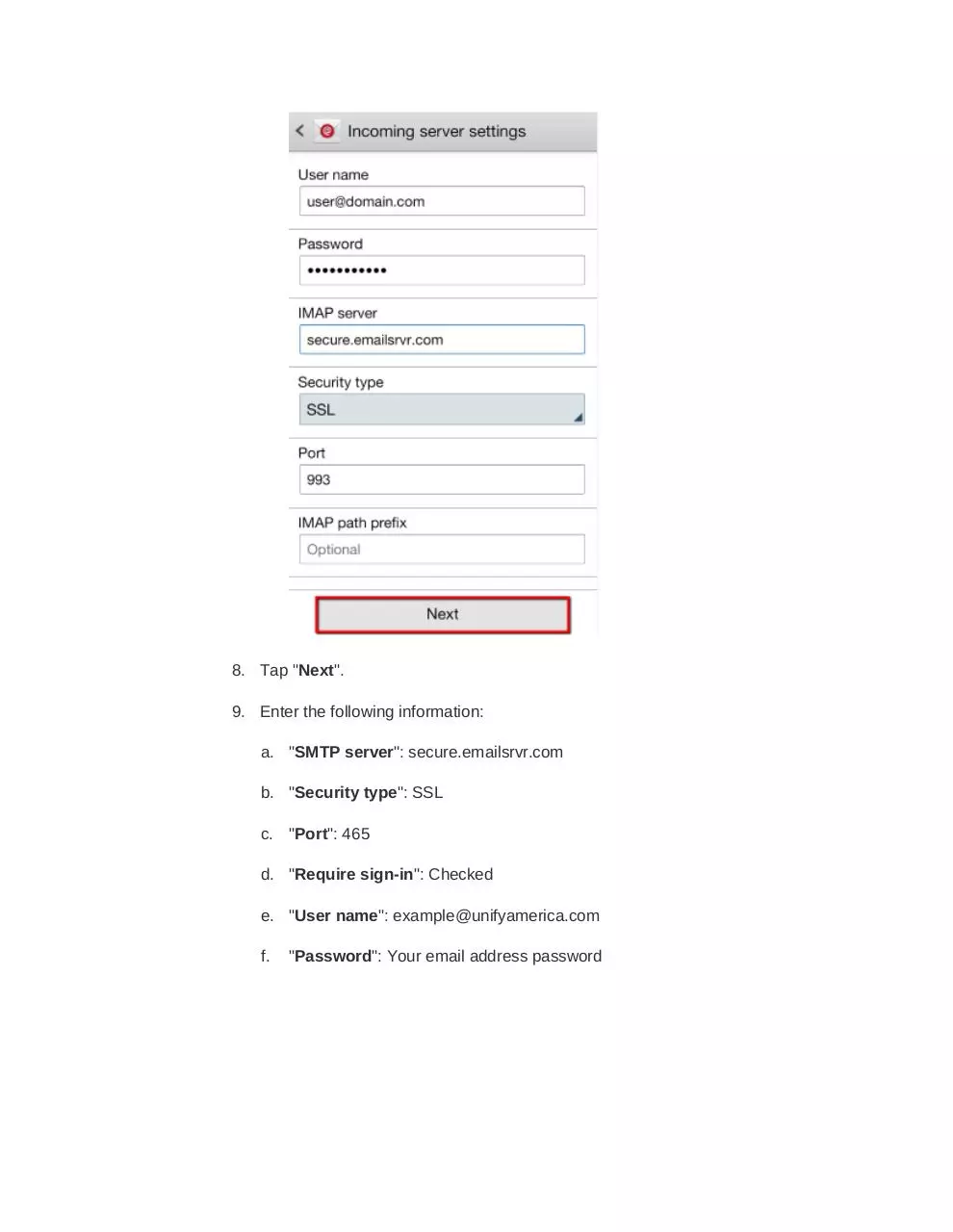
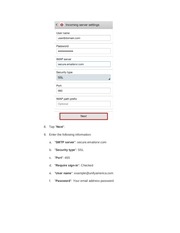
7. Enter the following information:
a. "Username": example@unifyamerica.com
b. "Password": Your email address password
c. "IMAP Server": secure.emailsrvr.com
d. "Security type": SSL
e. "Port": 993
f.
"IMAP path prefix": Leave this field blank
�
8. Tap "Next".
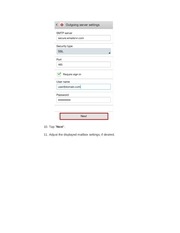
9. Enter the following information:
a. "SMTP server": secure.emailsrvr.com
b. "Security type": SSL
c. "Port": 465
d. "Require sign-in": Checked
e. "User name": example@unifyamerica.com
f.
"Password": Your email address password
�
10. Tap "Next".
11. Adjust the displayed mailbox settings, if desired.
�
12. Tap "Next".
13. Within the "Set up email" screen, enter your Email Address and your Name.
�
14. Tap "Done".
15. Success! Your Samsung device should now begin syncing with your mailbox.
�
 Historical archive . public document