MoneyDroid (Pro)
v1.2
This manual will give you a brief overview of the features of MoneyDroid (Pro). Please
contact me under SHRIEKINGRAVENSTUDIOS@GMAIL.COM if you are having any kind of
trouble.
Hint: Do always try the MENU button for more options and take a look at all
preferences.
Table of Contents
1 Overview
1.1 Getting started
1.2 Pro Version
1.3 Main window
1.4 Form
1.5 Evaluation
2 Categories & Accounts
3 Cycles
4 Transfers
5 Budgets
6 Preferences
6.1 Customize
6.2 Widget & Status bar
6.3 Database
6.3.1 Sqlite Backup & Restore
6.3.2 Export
6.3.2.1 CSV Export
6.3.2.2 QIF Export
6.3.3 CSV Import
�
1 Overview
1.1 Getting started
•
In the main window press MENU and Preferences
•
Under manage accounts and categories you can edit the samples (press or long
press) or create new ones (MENU – Add); more information under CATEGORIES &
ACCOUNTS
In the preferences go to Customize and select your currency and preferred date
format
•
•
To see the total of the month and/or the totals in the account filter as running
balance check the two Running balance options
•
Insert entries from the main window (MENU – Add Entry) with your initial
account balance
BACK TO INDEX
1.2 Pro Version
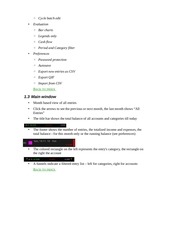
The Pro version will get you following features:
•
Widget & Notification Bar
•
Main window
◦ Unlimited budgets
◦ Category Filter
�
◦ Cycle batch edit
•
Evaluation
◦ Bar charts
◦ Legends only
◦ Cash flow
◦ Period and Category filter
•
Preferences
◦ Password protection
◦ Autosave
◦ Export new entries as CSV
◦ Export QIF
◦ Import from CSV
BACK TO INDEX
1.3 Main window
•
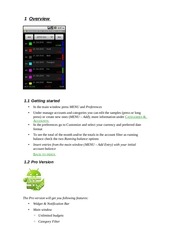
Month based view of all entries
•
Click the arrows to see the previous or next month, the last month shows “All
Entries”
•
The title bar shows the total balance of all accounts and categories till today
•
The footer shows the number of entries, the totalized income and expenses, the
total balance - for this month only or the running balance (see preferences)
•
The colored rectangle on the left represents the entry's category, the rectangle on
the right the account
•
A funnels indicate a filtered entry list – left for categories, right for accounts
BACK TO INDEX
�
1.4 Form
•
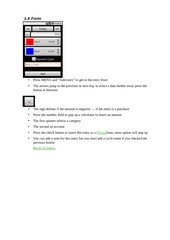
Press MENU and “Add entry” to get to the entry from
•
The arrows jump to the previous or next day, to select a date further away press the
button in between
•
The sign defines if the amount is negative → if the entry is a purchase
•
Press the number field to pup up a calculator to insert an amount
•
The first spinner selects a category
•
The second an account
•
Press the check button to insert this entry as a CYCLE/loan, more option will pop up
•
You can add a note for this entry but you must add a cycle name if you checked the
previous button
BACK TO INDEX
�
1.5 Evaluation
•
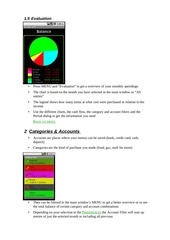
Press MENU and “Evaluation” to get a overview of your monthly spendings
•
The chart is based on the month you have selected in the main window or “All
entries”
•
The legend shows how many items at what cost were purchased in relation to the
income
•
Use the different charts, the cash flow, the category and account filters and the
Period dialog to get the information you need
BACK TO INDEX
2 Categories & Accounts
•
Accounts are places where your money can be saved (bank, credit card, cash,
deposit)
•
Categories are the kind of purchase you made (food, gas, stuff for mom)
•
They can be filtered in the main window's MENU to get a better overview or to see
the total balance of certain category and account combinations
•
Depending on your selection in the PREFERENCES the Account Filter will sum up
entries of just the selected month or including all previous
�
•
The Category Filter shows always just the selected month's amounts
BACK TO INDEX
3 Cycles
•
Cycles help you insert repeating payments or larger purchases/loans you would
like to be split for an early overview or a mix of both
•
To insert a cycle check the button to provide the necessary data
•
This example will split the amount of $100 into three pieces of $33.33 for two
years
•
By long pressing an entry in the main window you will get more options if it is part
of a cycle
•
“Edit Cycle” allows you to change the cycles account, category and amount of
single entries at once; you will then be ask if to apply the changes to all cycle
entries or from this entry forth
•
Cycles need a name to be visibly grouped, after inserting it you can specify notes
to single cycle entries
•
You can combine Cycles with TRANSFERS to make regular payments
BACK TO INDEX
4 Transfers
�
•
Transfers should be used with a neutral category in order to keep the balance
unharmed
•
The money will be transfered from the first account to the second
•
The sign is removed since you can only transfer positive values
•
You can combine Transfers with Cycles to make regular payments: CYCLES
BACK TO INDEX
5 Budgets
•
Budgets help you keeping track of your money in custom periods and warn you if
you exceed a preset percentage
•
The budget's next period is automatically set until you delete the budget
•
The bar color darkens according to the spend percentage
•
The black line below represents the progressing period
�
•
If you exceed your preset percentage, you will be alarmed daily until a new period
is reached or you turn off the alarm
BACK TO INDEX
6 Preferences
•
Most Preferences should be explained in the summary text
•
Select Preferences or turn your mobile device to landscape mode if text has been
cut off
BACK TO INDEX
6.1 Customize
•
The most important options should be the currency, the date format and the running
balance
BACK TO INDEX
�
6.2 Widget & Status bar
•
Choose the accounts you want to be included in the calculations (default: All)
6.3 Database
•
Autosave will help you to restore your database from sd card in case you change
your phone or upgrade to the PRO VERSION
BACK TO INDEX
6.3.1
Sqlite Backup & Restore
•
MoneyDroid will save your database in /sdcard/MoneyDroid/
•
If you upgraded to the Pro make a backup and restore it in the Pro version
BACK TO INDEX
�
6.3.2
Export
6.3.2.1 CSV Export
•
Exporting all entries as CSV file will allow you to get an overview in an Office
Application
•
By exporting only new entries you can avoid double importing them in another
software or another MoneyDroid app for syncing
•
In most cases the “\t” separator should be preferred
BACK TO INDEX
6.3.2.2 QIF Export
•
Helps you to sync your data to a money booker software
•
MoneyDroid has no payee field yet, with enough requests this function will be
added
BACK TO INDEX
6.3.3
CSV Import
•
Make sure the file is stored in /sdcard/MoneyDroid/CSV/ and got the correct order
of columns (make an EXPORT first to compare)
•
Hint: Since most banks use different column orders, you probably need to
rearrange the columns with Excel or OpenOffice
•
Categories and Accounts will be generated if not yet present; you can modify them
after the import
BACK TO INDEX
�
 Historical archive . public document