LION SAFETY
MOBILE APPLICATION
MANUAL
DC Marrickville
Jan 2018
�
CONTENT
Installation
1
Operating the App
6
�
2
1
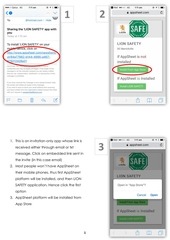
1. This is an invitation-only app whose link is
3
received either through email or txt
message. Click on embedded link sent in
the invite (in this case email)
2. Most people won’t have AppSheet on
their mobile phones, thus first AppSheet
platform will be installed, and then LION
SAFETY application. Hence click the first
option
3. AppSheet platform will be installed from
App Store
1
�
5
4
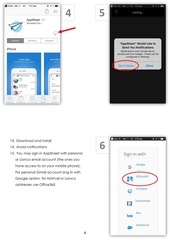
13. Download and Install
6
14. Avoid notifications
15. You may sign in AppSheet with personal
or Lionco email account (the ones you
have access to on your mobile phone).
For personal Gmail account sing-in with
Google option; for Hotmail or Lionco
addresses use Office365
2
�
8
7
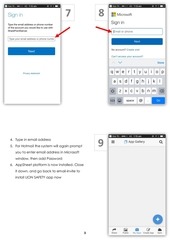
4. Type in email address
9
5. For Hotmail the system will again prompt
you to enter email address in Microsoft
window, then add Password
6. AppSheet platform is now installed. Close
it down, and go back to email-invite to
install LION SAFETY app now
3
�
11
10
7. Click on same link in email
12
8. This time click the 2nd option (as
AppSheet is already installed now)
9. It will add LION SAFETY app icon on
your home screen for ease of access
4
�
14
13
10. Add to Home Screen
15
11. You can change the name of icon,
but better to just Add
12. LION SAFETY app is now installed and
its icon rests on your home screen
(Note: Do not remove AppSheet icon next
to the LION SAFETY icon as this will uninstall
the platform, rendering SAFETY app
unusable)
5
�
1
1. Click on LION SAFETY icon to open the
app
2. Once Loading and Syncing of data is
complete, an interface will open;
showing all safety observations you or
any other person using this app is
making. In order to register new
observation click the round icon
2
6
�
B
A
3. New page opens. It contains:
Timestamp: Auto filled
Date: Auto filled
Observer name: Put in your
3
name
Location: Drop down A will
appear, click on relevant option
Category: Drop down B will
appear, click on relevant option
Description C: Type in brief info
about incidence/observation
(Note: All fields are mandatory)
C
7
�
 Historical archive . public document